Read your dictations
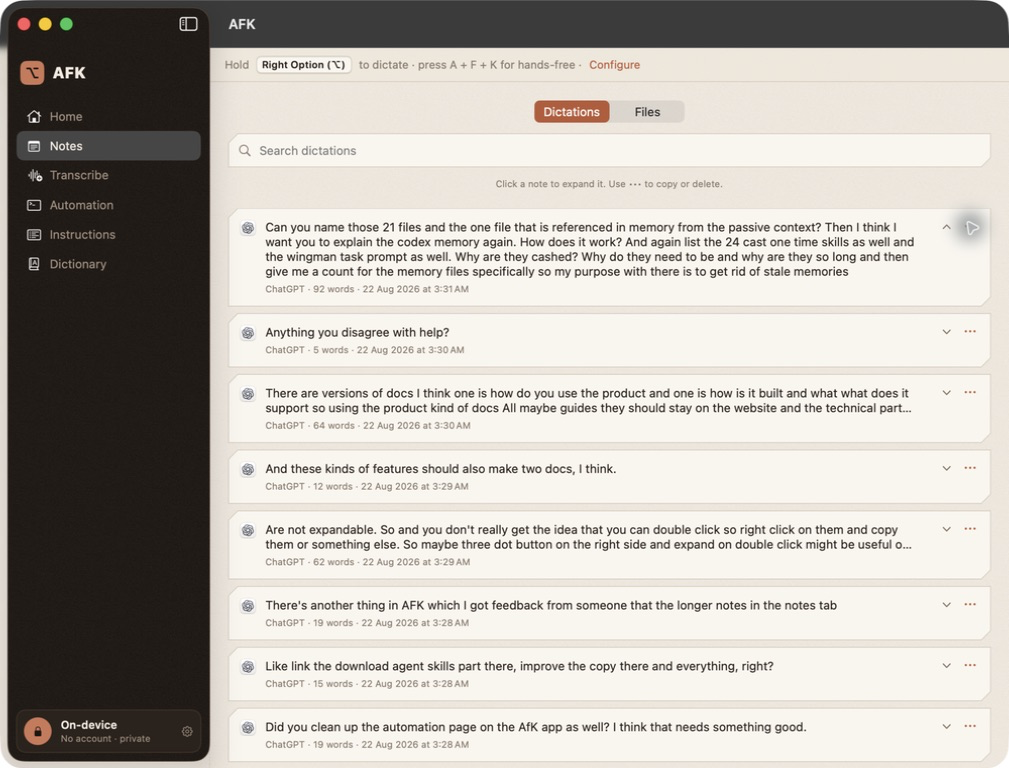
Open Notes and choose Dictations. Newer records appear first. Each row shows the source app, word count, and time alongside the beginning of the note.
Click anywhere in a note's main row to expand the complete text. Click it again—or use the chevron—to collapse it. Expansion changes only what you see; it does not edit the saved note.
Copy and delete
Use the visible ••• menu at the right of a row for Expand or Collapse, Copy note, and Delete note. The same actions remain available from the Mac context menu, but right-clicking is not required.
Deleting is permanent inside AFK: Delete note removes that dictation record from local history. Copy it somewhere else first if you want to keep it.
Search
The search field matches words inside dictation text. Clear it to return to the newest-first list. Searches stay local to the app.
Open saved transcription files
Choose Files to see references created after you save a result from Transcribe. Clicking an available row opens that file. Its ••• menu can also reveal the file in Finder or remove only the history reference.
If the file was moved or deleted, AFK marks it unavailable. Removing the reference does not delete a file, and AFK does not keep a second permanent copy of its transcript text.
Delete all history
Settings → Delete all history clears dictation records, saved-file references, and fresh unsaved transcription results held in AFK's local cache. Files you deliberately saved to disk stay where you put them, and transcription jobs already running continue.
For the rest of AFK's storage and network boundaries, read the privacy page. For the one-hour unsaved-result window, see Transcribe.