Dictation
Hold Right Option, speak, release. The text lands in the field you were already typing in.
Dictation works across your Mac, so there is no AFK window to find first. The speech model runs on your Mac; your audio is not sent to a speech API.
- Your key. Right Option is the default. Pick a different key in Settings.
- Hands-free. While holding the key, press A F K to keep recording without holding. Finish with the key plus Return. Esc cancels.
- Nothing vanishes. If the field can't take text, the dictation waits on your clipboard. When it does paste, what you had on the clipboard before comes back, images and files included.
- Any microphone. Built-in, wired, or Bluetooth earbuds. Switch mics halfway through a dictation and the recording carries on.
- A second chance. AFK keeps each dictation's audio on your Mac for 24 hours, then deletes it. If a transcription fails, it waits at the top of Notes with a Try again button.
- Your spelling. Turn on sentence capitalization and filler-word removal, and add say this, write that entries to the Dictionary for names and product terms.
- 25 languages. The default model covers English and 24 other European languages. An English-only model is there if you prefer it.
Home
The scoreboard for your dictation.
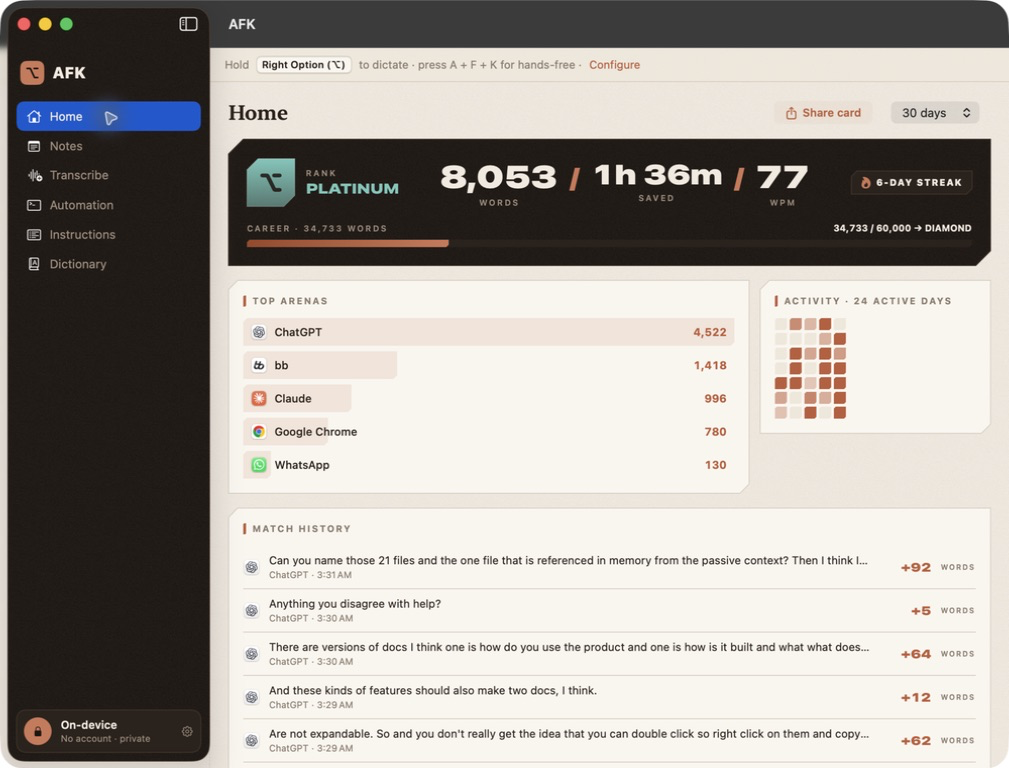
Home counts the words you dictated, the time that saved you against typing them, your words per minute, and your day streak. Look at the last 7, 30, or 90 days, or all time. Below that are the apps you dictate into most, an activity grid, and your recent dictations. A rank climbs with your total word count.
Transcribe
Drop in an interview, a lecture, or a screen recording and get the words out of it.
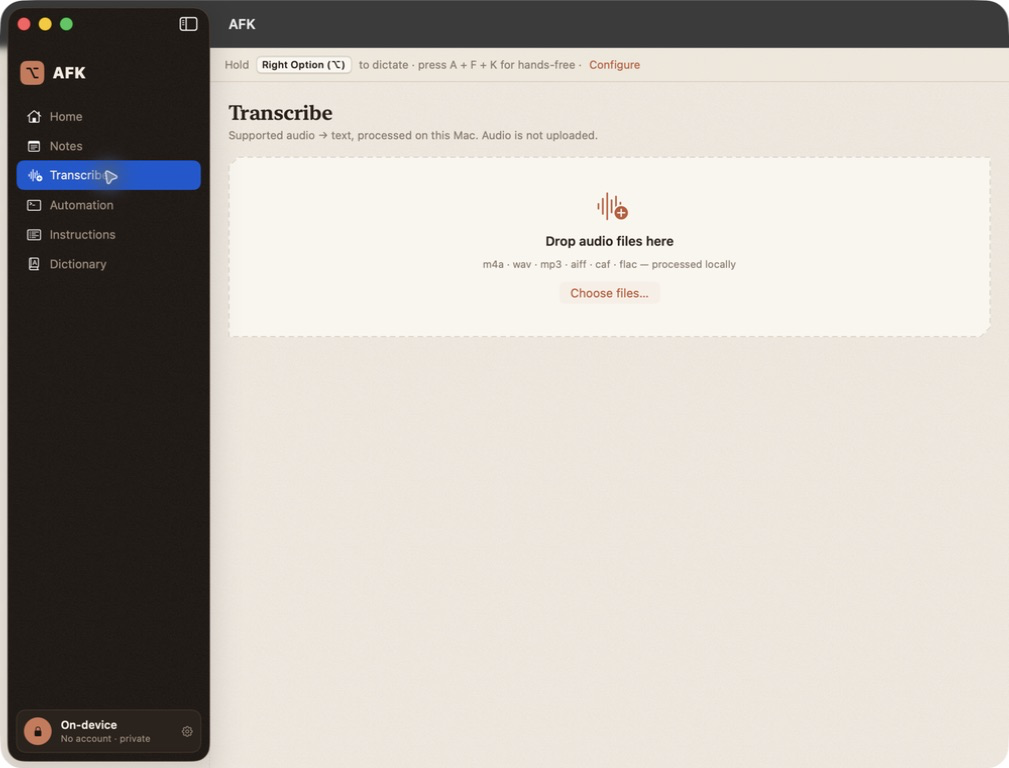
- Audio and video. M4A, WAV, MP3, AIFF, CAF, and FLAC audio. MP4, MOV, and M4V video with an audio track.
- Long recordings. AFK reads a file in chunks of about 120 seconds, so a three-hour recording is a longer wait, not a different product.
- A queue. Add several files and AFK works through them one at a time.
- Three formats. Save as TXT, as SRT subtitles when the transcript has timings, or as JSON.
- Save automatically. Choose an output folder and format, and each finished file is written there. An existing file is never overwritten.
- An hour to decide. A finished result you haven't saved is kept for one hour.
Notes
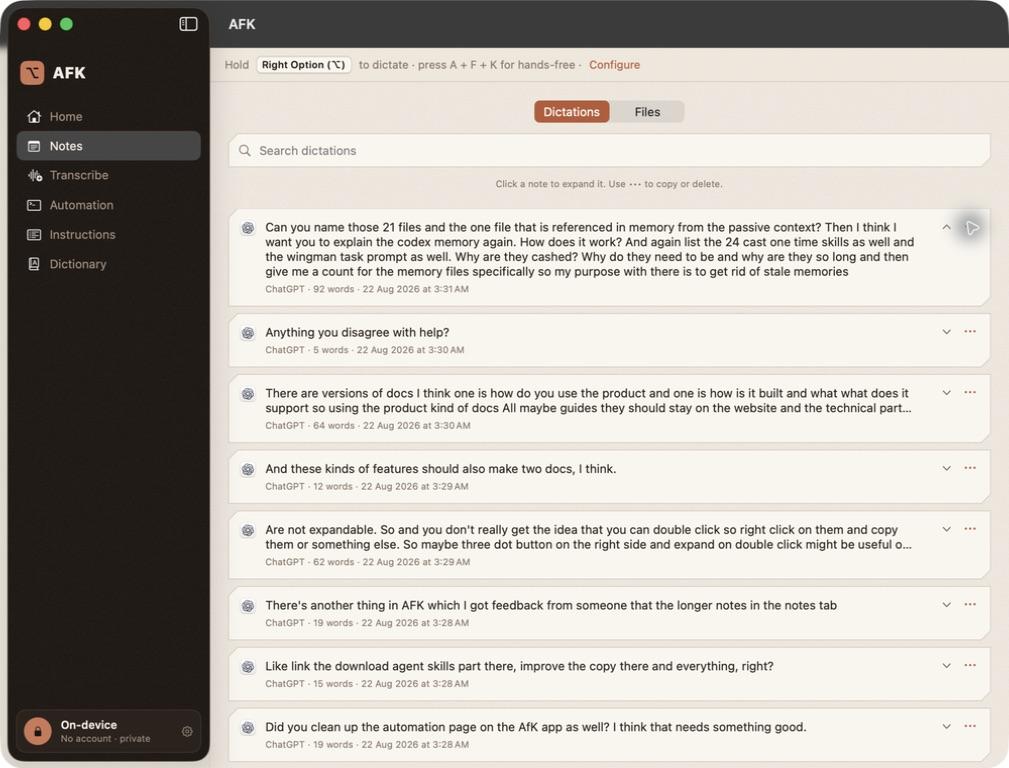
Every dictation is kept on your Mac, newest first.
- Search. Find a dictation by any words in it.
- Read, copy, delete. Click a note to open all of it. The three-dot menu copies or deletes it.
- Files. A second tab lists the transcripts you saved from Transcribe, with Open and Reveal in Finder.
- Yours to clear. Delete one note, or all history at once in Settings → Data.
Automation and the command line
The app is also a command.
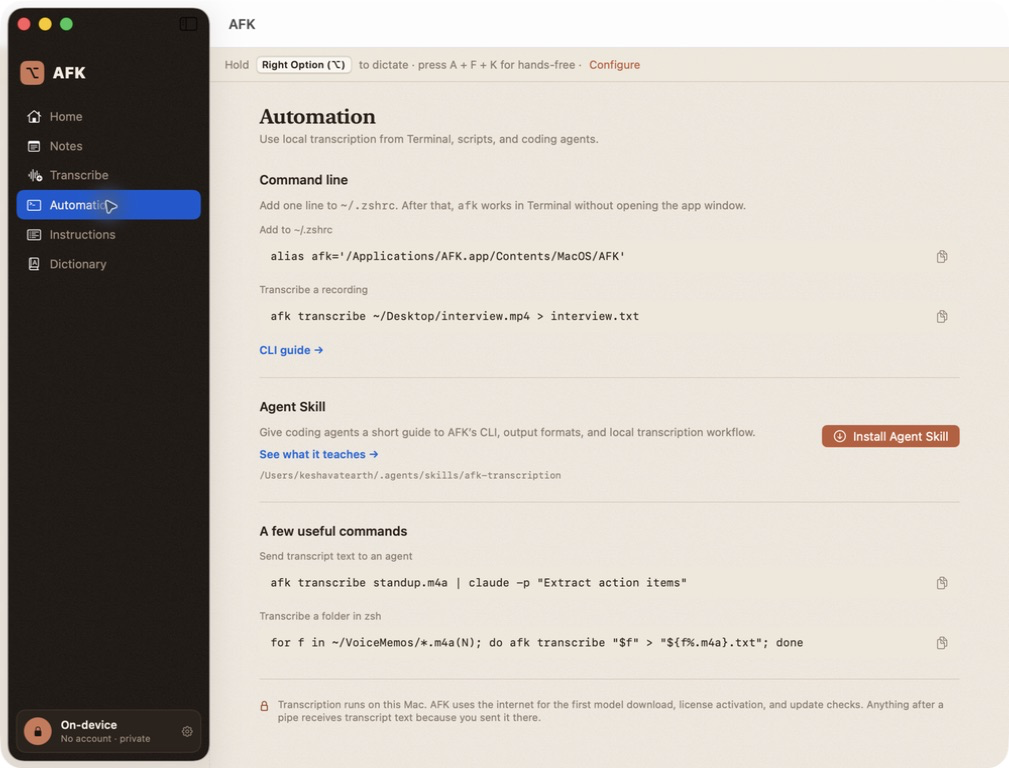
The same AFK app runs from Terminal without opening a window. The Automation screen shows the one line to add to your shell and installs a short Agent Skill, so a coding agent can run the command too.
$ afk transcribe meeting.m4a
$ afk transcribe interview.mp4 > interview.txt
$ afk transcribe lesson.mov --srt > lesson.srt
$ afk install-agent-skill
- Clean output. The transcript goes to stdout. Progress and errors go to stderr, so a pipe or redirect gets only the text.
- Structured when you need it.
--srtfor subtitles,--jsonfor words with timings. - One file per command. There is no batch flag. A folder is a short shell loop, and the batch page shows it.
What stays on your Mac
Dictation and file transcription run on your Mac. There is no account. AFK uses the internet for three things: downloading the speech model during setup, activating your license, and checking for updates.